How to Videocall on WhatsApp
How do I make a video call on WhatsApp? Open WhatsApp, pick the contact you want, and tap the video camera icon at the top of the chat. If you’re on a computer, use the WhatsApp Desktop app instead of assuming WhatsApp Web includes the same calling features. The first time, approve camera and microphone access, then wait for the other person to answer.
Key takeaways
- You need the app, a working account, permissions, and a stable internet connection before a WhatsApp video call will work well.
- On iPhone and Android, the video call button sits inside the chat; on desktop, use WhatsApp Desktop, not just WhatsApp Web.
- If the camera or mic is blocked, the call may connect with no picture or no sound, so permissions are worth checking first.
- WhatsApp is strongest for quick one-to-one or small-group calls, especially when both people already use the app.
- For better quality, use Wi-Fi, good lighting, and the rear camera when you need to show objects or documents.
What You Need Before You Start a WhatsApp Video Call
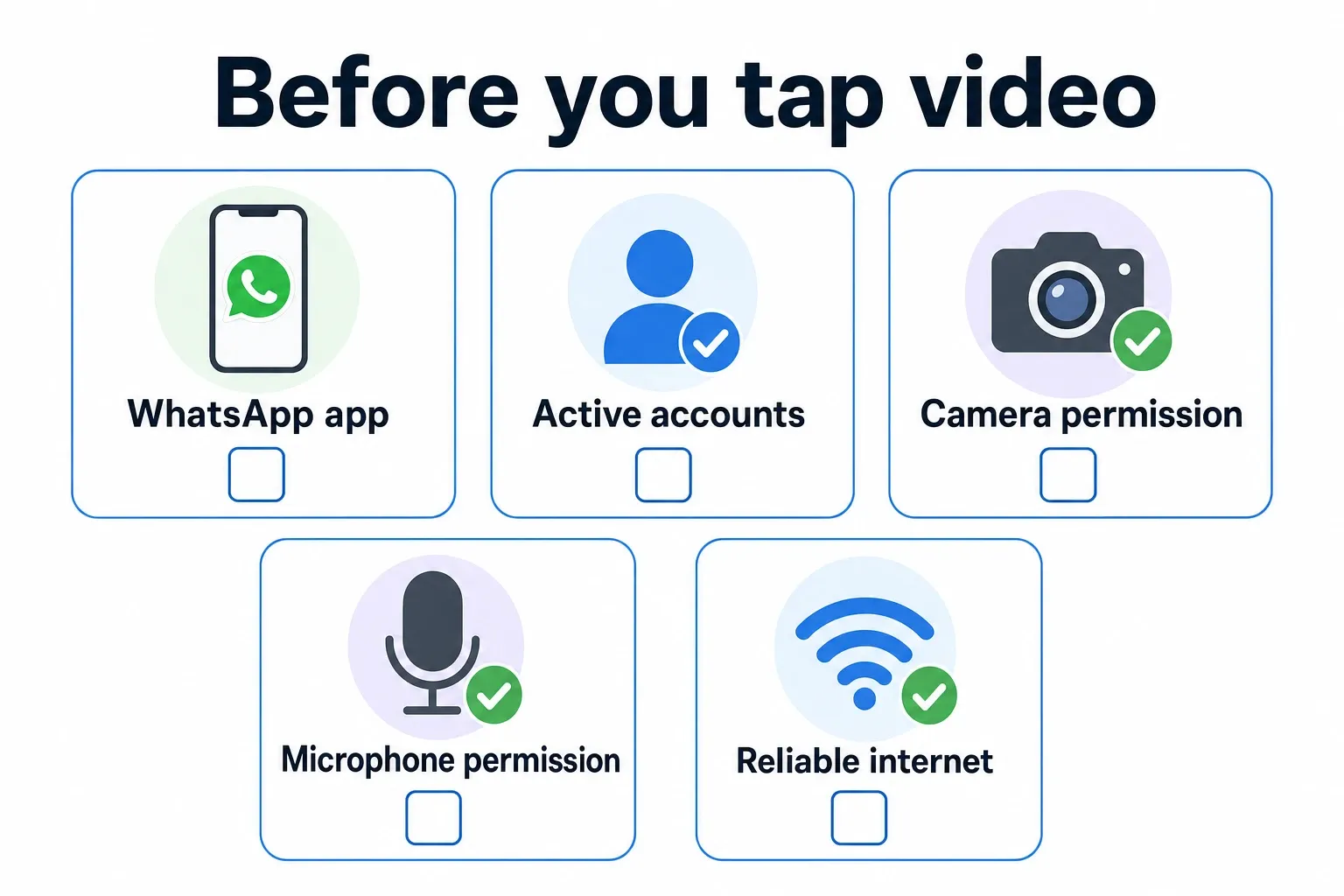
A WhatsApp video call requires the app, active accounts for both people, camera and microphone permission, and a reliable internet connection. WhatsApp Messenger is available for iPhone in the Apple App Store and for Android on Google Play, so the safest starting point is your phone’s official app store.
Install the official app and confirm the account
On iPhone, search the Apple App Store for “WhatsApp Messenger” and make sure the publisher is WhatsApp Inc. or Meta. On Android, install it from Google Play. Skip APK files from random sites, since sideloaded apps can cause security issues and make updates harder.
The person you’re calling also needs an active WhatsApp account connected to a phone number. Their name might still show in your WhatsApp contacts, but if the video camera icon is gone or the call won’t connect, check that they still use that number on WhatsApp and can receive internet-based calls.
Allow the permissions that make video work
WhatsApp needs camera permission so the other person can see you, and microphone permission so they can hear you. If you tapped “Don’t Allow” during setup, the call may start with a black screen, no sound, or a permission warning right away.
On iPhone, you manage these permissions in Settings on the WhatsApp app page. On Android, open WhatsApp’s app info screen and check Camera, Microphone, Contacts, and Notifications. The wording can change a bit depending on whether you use Samsung, Google Pixel, or another Android phone.
Use Wi-Fi for longer calls whenever it’s available. A strong cellular connection can work well, too, but real-world conditions matter. A moving car, a packed event, or a weak signal inside a building can lead to frozen video, lagging audio, or calls that drop without much warning.
How to Make a WhatsApp Video Call on iPhone, Android, and Desktop
The quickest method is the same on iPhone and Android: open a one-on-one chat and tap the video camera icon near the top of the screen. Calling from a computer depends on which desktop option you’re using, so check the app instead of relying only on a browser tab at web.whatsapp.com.
- Open WhatsApp Messenger on your iPhone or Android phone. Go to the Chats tab, tap the person you want to call, then tap the video camera icon in the upper area of the chat. If WhatsApp asks for Camera or Microphone permission, choose Allow; choosing Don’t Allow is the most common first-use mistake.
- To start from your contact list instead of an existing conversation, tap the new chat button, choose the contact, open the chat, and tap the video camera icon. This is useful when you have never messaged the person in WhatsApp but their number is already saved in your phone contacts.
- For a group video call, open the group chat and use the call option shown in that conversation. WhatsApp places call controls on the call screen, including mute, camera on/off, speaker or audio routing, and the button to end the call. The exact arrangement can change after app updates, so look for the icons rather than memorizing their position.
- To switch cameras during a mobile call, tap the camera-flip control on the call screen. Use the rear camera when you need to show a document, a room, or a product; use the front camera for face-to-face conversation. If the other person says your picture is too dark, turn toward a window or lamp before changing app settings.
- To use a computer, install or open WhatsApp Desktop from the official WhatsApp download page, link it to your phone, then open a chat and look for the call controls. WhatsApp’s own site separates the desktop app, WhatsApp Web, and its Help Center, so use WhatsApp as the starting point if you are unsure which version you have.
- If you are on WhatsApp Web at web.whatsapp.com, do not assume it behaves like the installed desktop app. WhatsApp Web is excellent for typing messages on a larger keyboard, but video calling features can differ from the desktop app; for fewer surprises, use WhatsApp Desktop when the call matters.
- If the first call fails, close the call screen and test three things in order: the app’s permissions, your internet connection, and whether the other person is reachable in WhatsApp. This order saves time because a blocked microphone or camera can make a perfect Wi-Fi connection look broken.
WhatsApp Video Call Features, Limits, and Quality Settings
WhatsApp video calling works best for direct conversations inside the app, not formal meeting management. Its useful strengths are practical: you can start from a chat, the mobile controls feel familiar, and WhatsApp describes end-to-end encryption for personal messages and calls in its listing on the Apple App Store.
| Feature area | What it means in a WhatsApp video call | Practical tip |
|---|---|---|
| One-to-one video call | A direct call from one WhatsApp account to another, started from the individual chat screen. | Use this for family calls, quick check-ins, or a face-to-face conversation with one person who already uses WhatsApp. |
| Group video call | A call started from a group chat or call flow, with shared controls for people in the call. | Use it for casual catch-ups. For a structured work meeting with screen sharing rules, calendar invites, and host controls, a meeting app may fit better. |
| Call controls | Mute, camera off, camera switch, speaker or audio routing, and end-call controls appear on the call screen. | If someone cannot hear you, tap mute once to confirm it is off before changing phone settings. |
| Quality factors | Call quality depends more on connection stability, lighting, microphone access, and device performance than on a hidden “HD” button. | Move closer to your router, face a light source, and close other heavy apps if the picture freezes. |
| Privacy baseline | WhatsApp personal calls use end-to-end encryption, meaning the call content is designed to stay between the participants. | Encryption protects call content, but your phone can still show notifications, call logs, or contact names depending on your device settings. |
| WhatsApp Web vs. Desktop | WhatsApp Web runs in a browser at web.whatsapp.com, while WhatsApp Desktop is the installed computer app experience. | If video calling on a computer is your goal, start with WhatsApp Desktop and confirm current calling support in the WhatsApp Help Center. |
The video quality setting you can control most is usually the room, not some hidden menu. Hold the phone steady at eye level and keep light in front of your face. That setup often looks better than a newer phone aimed upward from a dark couch.
When WhatsApp Video Calling Is the Best Choice
WhatsApp video calling is a good fit when the other person already uses WhatsApp and you want a quick conversation without setting up a meeting. The app is owned by Meta Platforms, and its wide use makes it a common option for friends, relatives, and international contacts who may use different phone platforms.
Use WhatsApp for quick personal conversations
Choose WhatsApp when the call naturally starts from a message thread you’re already using. If your aunt sends a photo in WhatsApp and asks how to set up a new coffee maker, tapping the video camera in that same chat is easier than moving everyone to another app.
It’s also handy for iPhone-to-Android calls. FaceTime works best within Apple’s ecosystem, while WhatsApp gives both people the same app experience whether one person has an iPhone and the other has a Samsung Galaxy, Google Pixel, or another Android phone.
Skip it for structured meetings
Use Zoom, Microsoft Teams, or Google Meet when the call needs meeting links, waiting rooms, screen-sharing rules, recordings, or a defined host. WhatsApp is fine for a personal video chat, but it isn’t built to replace a formal webinar or a client presentation with several agenda items.
A regular phone call can still be the smarter option when video doesn’t add anything. If you’re driving, walking through a grocery store, or calling a business that doesn’t use WhatsApp, audio is usually safer and a lot less awkward.
Decide by convenience, device access, and audience size
Convenience usually wins when everyone is already in the same WhatsApp chat. Device access also matters: one person may be on a laptop with no working webcam, while another may have a phone battery that’s almost gone. Audience size matters, too, because casual groups and formal meetings come with different expectations.
For U.S. users with family overseas, the internet-based setup is one of the main practical reasons to use WhatsApp. WhatsApp describes itself as a messaging and calling service that works over an internet connection, and its official site points users to calling, messaging, groups, privacy, apps, and the WhatsApp Help Center in one place.
Which Setup Works Best in Real Life?
The best WhatsApp video call setup depends on what matters most to you: speed, mobility, comfort, or avoiding setup headaches. Mobile usually wins when you need to call fast. WhatsApp Desktop can be better for a longer seated call, as long as the computer’s camera and microphone already work.
| Setup | Setup speed | Camera access | Calling convenience | Troubleshooting friction | Plain-English recommendation |
|---|---|---|---|---|---|
| iPhone | Fast if WhatsApp Messenger is installed and permissions are already allowed. | Camera and microphone permissions are controlled in iOS Settings; the App Store listing identifies WhatsApp Messenger as the official app. | Best for quick one-to-one calls, moving around the house, and iPhone users who already keep WhatsApp notifications on. | Low to moderate: most issues are denied permissions, weak Wi-Fi, or the other person not using the right number. | Choose iPhone when speed and mobility matter most. Evidence anchor: Apple App Store. |
| Android | Fast after installation from Google Play, with permissions managed through Android app settings. | Camera and microphone prompts may vary slightly by Samsung, Google Pixel, Motorola, or other Android interfaces. | Best for everyday calls, cross-platform chats with iPhone users, and people who rely on WhatsApp as a main messaging app. | Moderate: Android permission menus differ by manufacturer, so finding the blocked setting can take an extra minute. | Choose Android when WhatsApp is already your main chat app and you need flexible mobile calling. Evidence anchor: Google Play. |
| WhatsApp Desktop | Slower the first time because you need the desktop app and account linking, but faster after setup. | Uses the computer’s webcam and microphone, so the operating system may ask for access separately from WhatsApp. | Best for longer seated calls, hands-free conversation, or when you want a larger display than a phone screen. | Moderate to high: problems can come from the app, the operating system’s camera privacy setting, Bluetooth devices, or the webcam itself. | Choose WhatsApp Desktop when comfort and screen size matter more than mobility. Evidence anchor: WhatsApp. |
| WhatsApp Web | Fast for messaging because it opens in a browser at web.whatsapp.com, but calling features can differ from the installed desktop app. | Browser camera access depends on the browser, site permissions, and current WhatsApp Web support. | Best for typing messages and managing chats from a computer, not as the safest first choice for a planned video call. | High for calls: browser permissions, feature availability, and device settings can all create uncertainty. | Choose WhatsApp Web for messaging; choose Desktop or mobile for video calls you do not want to troubleshoot live. Evidence anchor: WhatsApp Web. |
The trade-off is easy to understand: phones keep setup simple, desktops are more comfortable, and browsers add the most uncertainty for calling. If the call starts in five minutes, use your phone. If you have time to test the camera and audio, the desktop app may feel better for a longer conversation.
Bottom Line
Your next step comes down to three choices. Pick mobile or desktop based on whether you need mobility or a larger screen. Pick WhatsApp over FaceTime based on whether everyone uses the same phone ecosystem. Pick WhatsApp over Zoom based on whether it’s a casual chat or a structured meeting with controls.
For your first call, keep it simple: install the official app, open the chat, tap the video camera, and allow the camera and microphone permissions when prompted. From there, only tweak what’s actually causing trouble, like improving Wi-Fi if the video freezes, adding better lighting if your image looks dark, or using WhatsApp Desktop for a longer call that’s easier to manage.
Frequently asked questions
Are WhatsApp video calls free?
Yes, the call itself costs nothing to place. The part to watch is your connection: if you are not on Wi‑Fi, the call can use mobile data, and your carrier may charge for that data. A strong internet connection matters more than any call fee.
Do both people need WhatsApp to video call?
Yes. Both participants need active WhatsApp accounts linked to reachable phone numbers, and the person you call has to be able to receive internet-based calls in the app. If the video camera icon disappears or the call will not connect, the account or number may no longer be active on WhatsApp.
Can I make a WhatsApp video call on a computer?
Yes, but the experience depends on the version you use. The article recommends WhatsApp Desktop for fewer surprises, because WhatsApp Web may not offer the same calling features. If you want the best odds of a smooth computer call, start from the official WhatsApp desktop app and link it to your phone.
Why is my WhatsApp video call blurry or lagging?
The usual causes are weak internet, bad lighting, or a device that is already under heavy load. The article also points out real-world connection problems, like moving between cell signals, being inside a building with a weak signal, or joining from a crowded place. A stronger connection and better light usually fix the most obvious issues first.
Is WhatsApp video calling secure?
Yes, WhatsApp says video calls are protected with end-to-end encryption, which is designed to keep the call content between the participants. That said, security still depends on using the official app from the Apple App Store or Google Play, not random APK files or unofficial downloads.
How we researched this
Sources consulted for this article: