
How to Make a Facetime Call
To make a FaceTime call, open the app or a contact card on an iPhone, iPad, or Mac, choose a person with a reachable phone number or Apple ID email address, then tap Video or Audio. The call uses Wi‑Fi or cellular data, not regular voice minutes.
Key takeaways
- FaceTime works best when your device, contact details, and internet connection all line up.
- The most common setup mistake is a stale phone number or email in the contact card.
- You can start a FaceTime call from the FaceTime app or directly from Contacts.
- FaceTime Audio is a good backup when video is unnecessary or your connection is weak.
- If a call fails, check the Apple ID, contact fields, and network before changing random settings.
What FaceTime Is and What You Need Before You Tap Call
The service works only when the device, contact method, and internet connection all line up. Apple describes it on iPhone and iPad as a real-time calling tool for calls, screen sharing, translation, and shared media; some interaction tools depend on supported software, devices, regions, or languages, so check Apple’s current guidance before relying on them for an important call Apple Support.
On iPhone and iPad, check three items: the app is available, the service is switched on in Settings, and the person’s saved phone number or email can receive the call. Apple says it tries the enabled numbers and addresses stored in that contact, so an old work email can block the call before it starts.
Device support in plain English
For current setup steps, Apple Support is the stronger reference than device-history summaries. Legacy support began years ago on iOS and Mac OS X, but the practical point for today is simpler: use Apple’s iPhone, iPad, or Mac instructions for the device in your hand, and check the app’s settings before troubleshooting anything else Apple Support.
For a U.S. user with a current iPhone, iPad, or Mac, the real question usually isn’t whether the device includes the app. It is whether you are signed in correctly, calling the right saved number or Apple ID email, and using a Wi‑Fi or cellular connection stable enough for an internet call.
The account and contact details that matter
Your Apple ID is the identity layer behind the service on Apple devices, especially on iPad and Mac, where a phone number may not be the main way people reach you. On iPhone, your mobile number can appear as a calling option, but an Apple ID email may help calls ring on more than one Apple device.
The setup detail people miss most is the contact card. If “Mom” has a mobile number, an old iCloud address, and a work email she stopped using, the call button may offer several routes. Delete dead entries or label them clearly, such as “old work email,” so you do not keep tapping the wrong one.
FaceTime Call Setup Checklist: The Fastest Way to Prevent a Failed Call
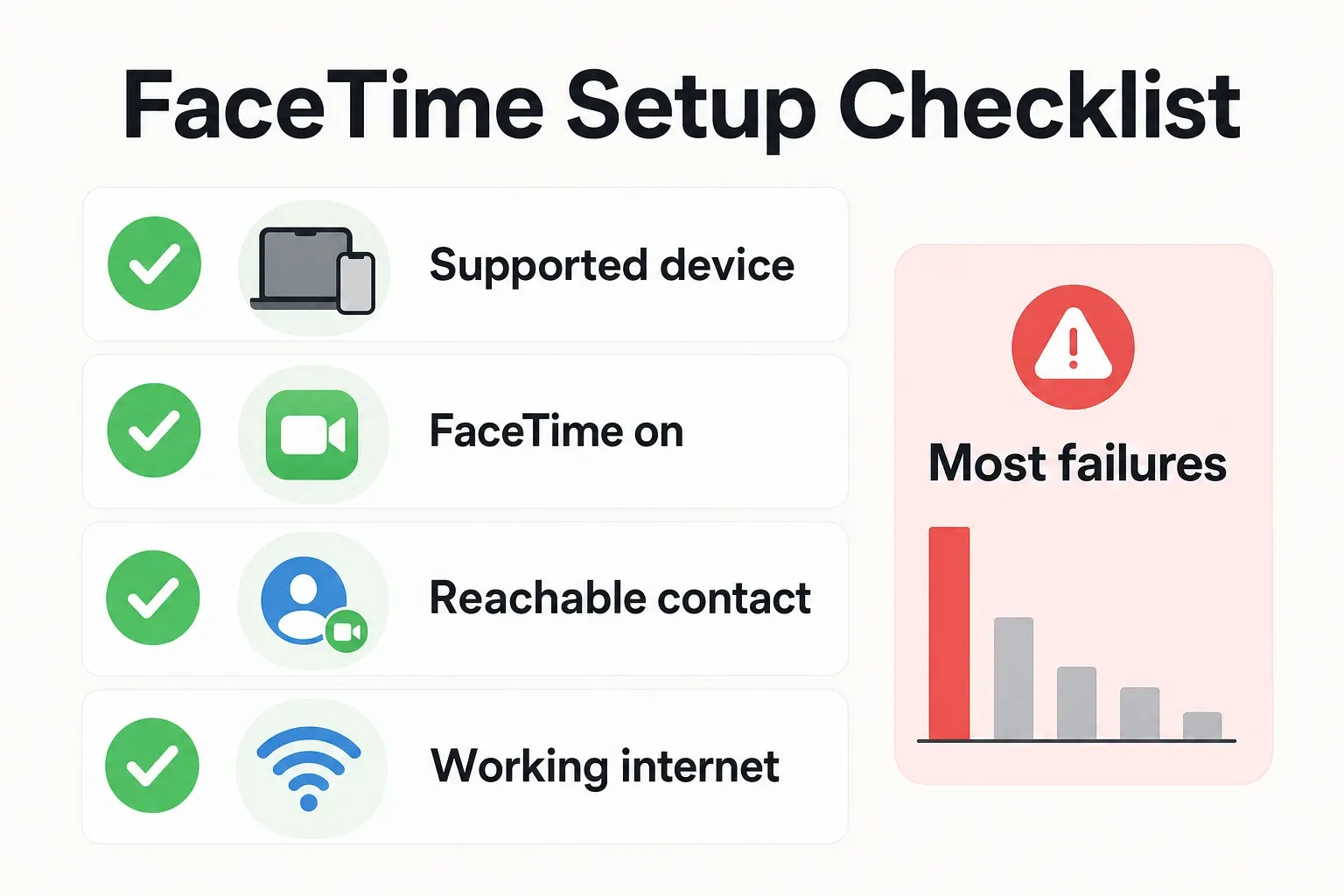
Use this setup checklist before a first call: Device check: iPhone, iPad, or Mac can open the app; Account check: the right Apple ID is selected where needed; Contact check: the saved number or email is the one the person actually uses; Network check: a web page or iMessage loads before you call.
| Device | Supported path | Required sign-in | Where the FaceTime button appears | FaceTime Audio availability | Most common failure point | Evidence |
|---|---|---|---|---|---|---|
| iPhone | Supported iPhone models with FaceTime use the FaceTime app, Phone app, or Contacts app to start a call. | Apple ID may be used, while the iPhone’s phone number can also be a reachable FaceTime address. | In a contact card, the FaceTime option can appear beside that person’s saved number or email address. | Available on iOS devices that support iOS 7 or newer. | The contact card contains the wrong number or an email address that is not enabled for FaceTime. | Apple says FaceTime tries stored FaceTime-enabled numbers and addresses when you tap a contact Apple Support. |
| iPad | A supported iPad uses the FaceTime app or Contacts app, with calls tied to reachable numbers or Apple ID email addresses. | Apple ID sign-in is especially important because most iPads do not use a standard cellular phone number as the main calling identity. | In Contacts, the FaceTime button appears when the saved contact method can be used for FaceTime. | Available on iOS 7 or newer compatible iPad models. | FaceTime is turned off in settings, or the Apple ID address selected for receiving calls is not the one the other person is using. | Apple lists FaceTime as an iPhone and iPad feature for making and answering calls Apple Support. |
| Mac | A Mac with FaceTime support starts calls from the FaceTime app and can also use contact details stored in macOS. | Apple ID sign-in is required because the Mac needs an account identity for sending and receiving FaceTime calls. | In the FaceTime app, you search a name, phone number, or email address, then choose the call type. | Available on a Mac with a forward-facing camera running OS X 10.9.2 or later. | The Mac is signed into a different Apple ID than the one people are trying to reach. | FaceTime support for Mac dates to Mac OS X 10.6.6, with FaceTime Audio support on OS X 10.9.2 and later FaceTime reference. |
This checklist explains why a failed call often has nothing to do with the camera. On iPhone, the wrong saved phone number or email is a common place to look. On iPad and Mac, confirm the Apple ID selected in the app before resetting settings or changing unrelated account options.
How to Make a Facetime Call on iPhone, iPad, or Mac
You can start a call from the app or from someone’s contact card, and the fastest path depends on the device. Choose Video if you want the camera on. Choose Audio if you want an internet voice call without video.
- On iPhone, open the FaceTime app. Tap New FaceTime, enter the person’s name, phone number, or Apple ID email address, choose the correct contact result, then tap FaceTime for video or the Audio option if you want voice only.
- On iPhone from Contacts, open the Contacts app or the Contacts tab inside Phone. Select the person, find the FaceTime row on the contact card, then tap the video camera icon for a video call or the phone icon for FaceTime Audio when it appears.
- On iPad, open FaceTime and use the search field to type the person’s name, number, or email address. Choose the matching contact carefully, especially if the person has multiple email addresses saved, then select the call type.
- On iPad from Contacts, open the contact card and look for the FaceTime button near the saved communication fields. If the button is missing, the saved number or email may not be recognized as FaceTime-enabled on that device.
- On Mac, open the FaceTime app from the Dock, Applications folder, Launchpad, or Spotlight. Click New FaceTime, type the person’s name, phone number, or email address, select the correct entry, then click the FaceTime button to place the call.
- On Mac, use FaceTime Audio when you want a voice call through the internet instead of a camera call. This is useful if you are on a weak connection, sitting in a public place, or calling someone who does not need to see your screen or surroundings.
- If the person does not answer, check the FaceTime app’s recent call list rather than repeatedly tapping different contact fields. Multiple attempts to different saved addresses can make it harder to tell which number or email address actually works.
Apple’s U.S. App Store listing presents the app as a built-in calling experience across iPhone, iPad, and Mac, and it also mentions Apple TV in Apple’s ecosystem App Store. For a first call, though, use iPhone, iPad, or Mac instructions from Apple Support rather than assuming every device starts calls the same way.
Best Ways to Use FaceTime Well Once the Call Starts
Once the call connects, the strongest benefits are built into the call screen: video, audio-only calling, screen sharing, shared media experiences, and group calling. One support guide notes group chats can include up to 32 participants, which is useful for family calls or small team check-ins when everyone uses compatible Apple devices FaceTime How to Guide.
- Use FaceTime Audio when video adds nothing. A voice-only FaceTime call can be the better choice for a quick appointment update, a low-battery situation, or a call from a place where turning on the camera would be awkward.
- Share your screen when the other person needs to see what you mean. Apple Support lists screen sharing as one of the real-time FaceTime capabilities on iPhone and iPad, which is helpful for walking a family member through a setting or showing a document without sending screenshots.
- Use language translation features when they are available on your device and software version. Apple includes translation among FaceTime’s supported interaction tools, so check the on-screen options during the call instead of assuming every feature is hidden in Settings.
- Watch supported content together when the call is social rather than urgent. Apple Support describes watching movies together as a FaceTime capability, which is best suited to planned calls where everyone has time and a compatible app experience.
- Start a group FaceTime call only when FaceTime is the right room for the group. FaceTime group calling supports up to 32 participants, which can work for family check-ins, small clubs, or a quick team huddle when the participants are already using Apple devices.
- Keep the call controls visible until you know where mute, camera flip, and end call are located. On a first call, the most costly mistake is tapping around while the other person is speaking and accidentally muting yourself or switching cameras.
Apple TV can be part of Apple’s calling ecosystem, but it should not be your default starting point for a first call unless you have already confirmed your setup. If you need to reach someone quickly, start on iPhone or iPad, then move to a larger screen only if your devices support that flow.
Common Problems, Limits, and When FaceTime Is Not the Best Choice
Most failed calls trace back to one of four things: no usable internet connection, the service turned off, a saved contact method that cannot be reached, or a device path that is not supported for the call you are trying to make. Check those in that order before changing deeper account settings.
If the call will not start
Start with the network. Open a web page or send an iMessage to confirm that Wi‑Fi or cellular data is working, then try again from the app instead of using an old recent-call shortcut. That shortcut may still point to a number or email address the other person no longer uses.
Next, confirm that calling is enabled on the device. On iPhone or iPad, Settings controls whether the service can be used and which numbers or Apple ID emails can receive calls. On Mac, open the app and make sure it is signed in with the Apple ID you intend to use.
If the wrong person or address appears
Open the contact card and inspect the exact fields under that person’s name. Apple says the service uses enabled numbers or addresses stored for the contact, so “Sarah” at the top of the card matters less than whether the saved mobile number or Apple ID email underneath is current Apple Support.
A practical fix is to ask the recipient, “Which number or Apple ID email should I use for Apple video calls?” Then remove outdated fields or label them clearly. That is safer than guessing between four similar entries while each failed attempt makes troubleshooting more confusing.
If the other person is not on an Apple device
The service remains Apple-centered, even though Apple provides web-based ways to join some calls. A person who receives a link may land on Apple’s facetime.apple.com/join page, which is a join experience, not the same native app flow used on iPhone, iPad, and Mac Apple FaceTime join.
That difference matters when planning the call. If you need a scheduled meeting with screen sharing and participants using many device types, a dedicated meeting app may be easier for the group. If everyone is on supported Apple hardware, Apple’s built-in option is often faster because contacts, camera, microphone, and notifications are already connected.
If the call quality is poor
Switching from video to audio-only can reduce the load on a weak connection because the camera stream is no longer part of the call. If the audio still breaks up, move closer to the Wi‑Fi router, pause large downloads, or switch to cellular data if your plan supports it and the signal is stronger.
Do not try to fix call quality by changing five settings at once. Change one thing, make a short test call, and keep the change only if the call improves. Random tweaks make it harder to tell whether the problem came from the network, the account, or the contact entry.
Final Pre-Call Checklist
A good first call usually comes down to a short pre-call check: open the app, confirm the right Apple ID if prompted, verify the recipient’s current number or Apple ID email, test your internet connection, and decide whether Video or Audio fits the conversation. Do this before a scheduled call, not while the other person is waiting.
- Confirm you are using a supported iPhone, iPad, or Mac with the FaceTime app available.
- Make sure FaceTime is turned on in settings or signed in on the Mac FaceTime app.
- Verify the Apple ID email address or phone number the other person actually uses for FaceTime.
- Open the contact card and remove or relabel old numbers and inactive email addresses.
- Test your internet connection before placing the call.
- Choose Video for a camera call or FaceTime Audio for a simpler voice call.
- Use the FaceTime app directly if a recent-call shortcut keeps failing.
- For group calls, keep the participant list within FaceTime’s 32-person ceiling.
- Use an Apple-native FaceTime path for Apple users, and consider a web join link or another meeting tool when the group includes non-Apple devices.
Frequently asked questions
Do I need an Apple ID to use FaceTime?
Yes. The service uses your Apple account to identify you, and the call must route through an enabled phone number or Apple ID email address. On iPhone, your mobile number may work too, but Apple ID sign-in is especially important on iPad and Mac.
Can I use FaceTime on an iPhone and a Mac?
Yes. The app is supported on iPhone, iPad, and Mac when the device and operating system are compatible. On a Mac, open the app, sign in if needed, and confirm the Apple ID selected for calls before assuming the other person’s device is the problem.
Why won’t FaceTime call a contact?
The most common causes are an incorrect phone number or email address, the service being turned off, or the other person not having a reachable Apple calling contact method. Also check for old work emails, disconnected mobile numbers, or duplicate contact cards that point the call to the wrong place.
Is FaceTime free to use?
Rates and fees are simple: Apple does not charge a separate app fee for these calls. They run over Wi‑Fi or cellular data, so the possible cost comes from your internet service or mobile data plan, especially if you have limited data or are using cellular away from Wi‑Fi.
Can I make an audio-only call with FaceTime?
Yes. Audio-only calling lets you place a voice call without turning on the camera, and it works on supported Apple devices. Use it when video is unnecessary, when you want a simpler call, or when turning off the camera may help a shaky connection. The best fix is still the basics: current contact details, the right account, and a stable internet connection.
How we researched this
Sources consulted for this article: